A plain-language walkthrough of the office reservation system: what a reservation is, how it moves from a first inquiry to closed, and the handful of buttons you'll actually press. If a screen looks busy, don't worry — you only ever touch one or two things at a time.
Open it from the left sidebar: reservations.
The one big idea
A reservation is a single rental, start to finish. It moves forward through stages — like a parcel moving through "ordered → shipped → delivered." Your job is almost always the same: open a reservation, check it, and advance it to the next stage when something happens in the real world (you send a quote, the client commits, the gear comes back, and so on).
That's it. Everything below is just detail.
1. The list
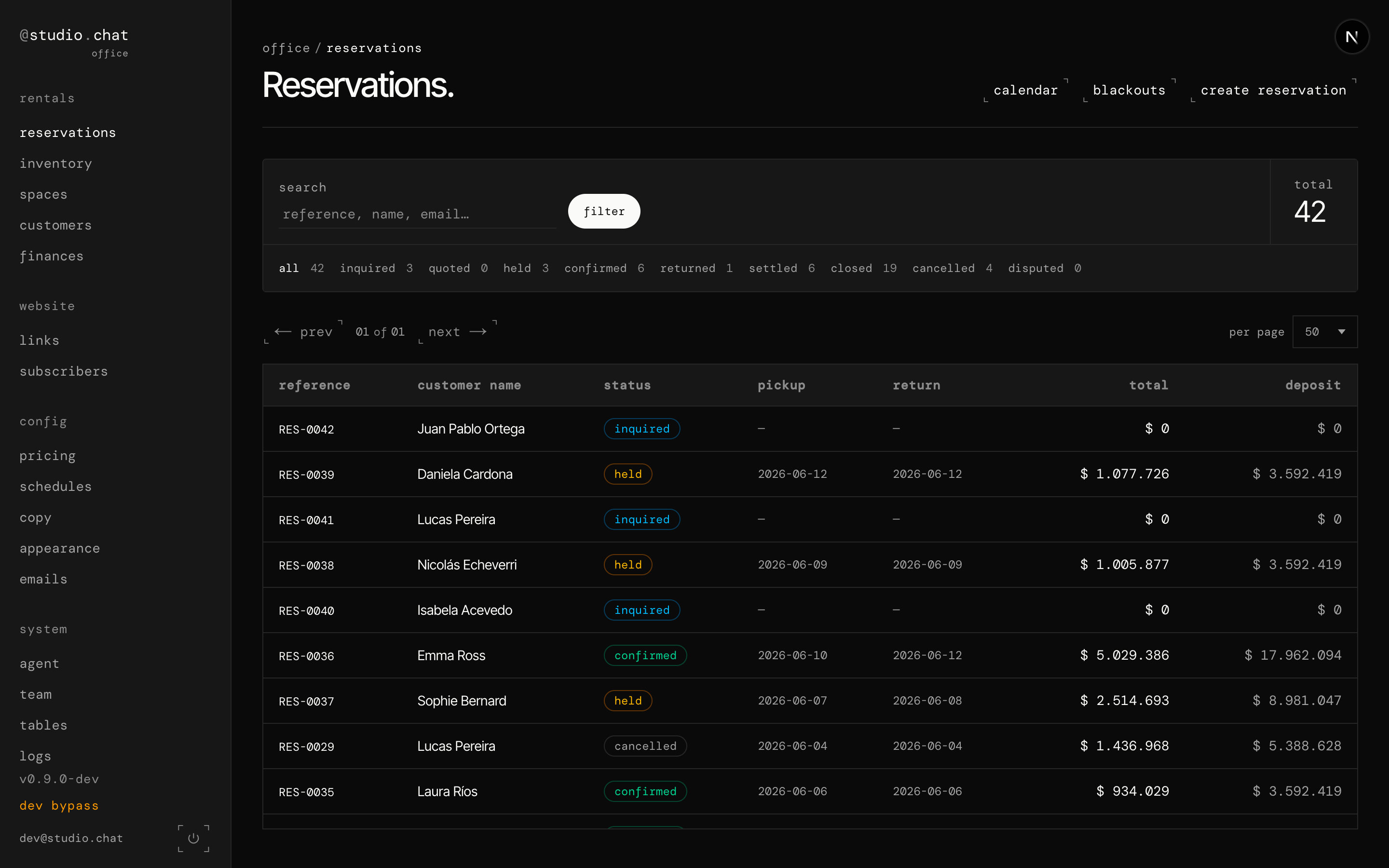
This is every reservation. From here you can:
- See the whole pipeline at a glance — the row of tabs near the top
(
all · inquired · quoted · held · confirmed · returned · …) shows how many sit at each stage. Click a tab to filter to just those. - Search by reference, client name, or email.
- Open any reservation by clicking its row.
- Start a new one with create reservation (top right).
Each row shows the reference (e.g. RES-0036), the client, the current
status, the pickup and return dates, the total, and the deposit.
2. The lifecycle — the heart of it
Open any reservation and the first thing you see is the lifecycle: a track of every stage, with the current one filled in.
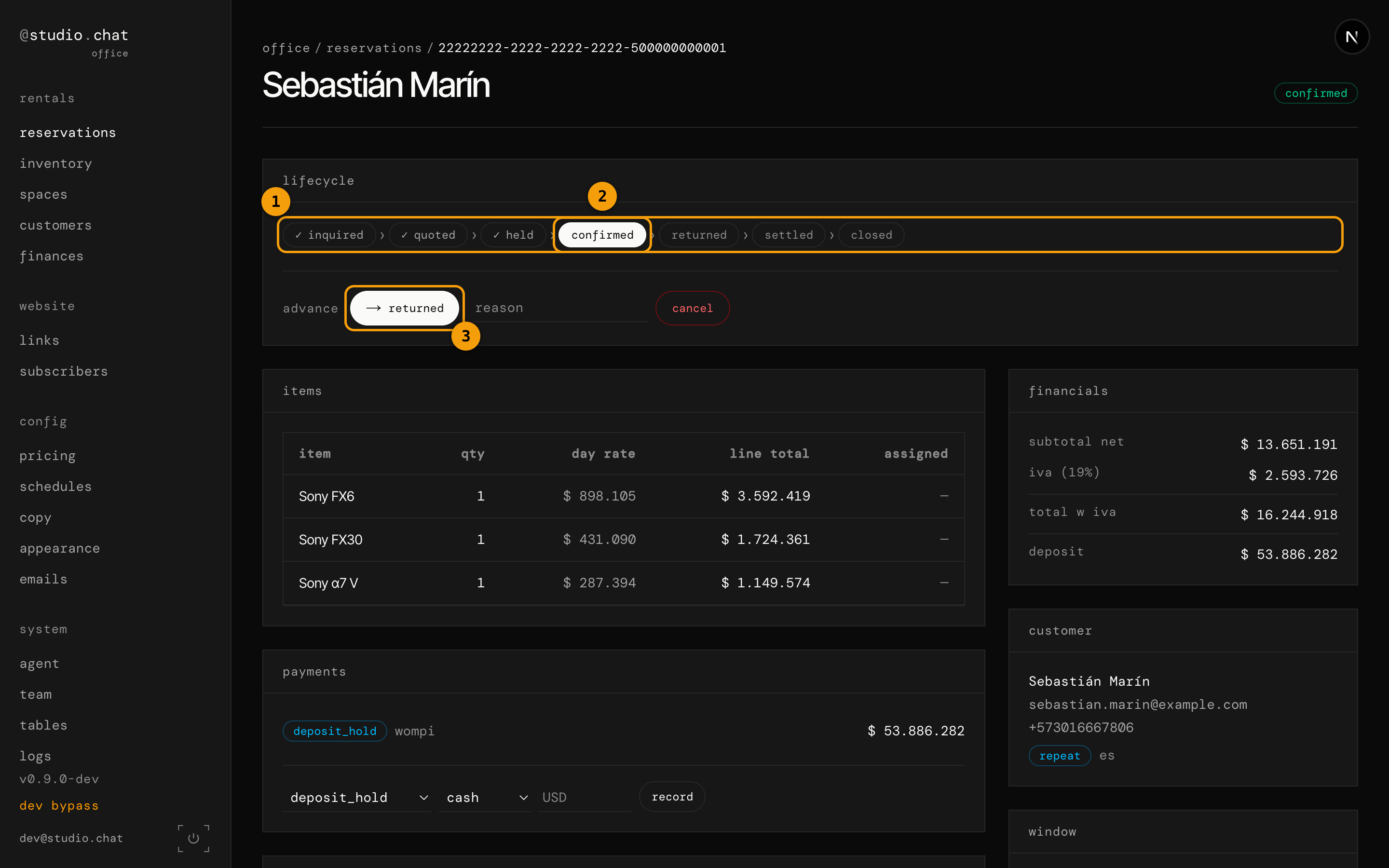
- The track shows all seven stages in order. Completed stages have a ✓.
- The filled pill is where this booking is right now (here, confirmed).
- The advance button moves it one stage forward. The button always names the next stage, so you never have to guess — here it reads → returned.
Tip: hover any stage on the track and a tooltip tells you what it means, how a reservation got there, and when to move it on. The screen teaches itself — you don't need to memorize this.
What each stage means
| Stage | What it means | When you move it on |
|---|---|---|
| inquired | A new lead — no quote sent yet. | Price it, then advance to quoted. |
| quoted | A price has been sent to the client. | Soft-hold the dates, or confirm it once they accept. |
| held | Dates are tentatively held — not yet confirmed. (Optional — you can confirm straight from quoted.) | Confirm to lock the dates. |
| confirmed | Dates locked, deposit expected. Gear going out and coming back is tracked by scans, not extra stages. | Mark returned when all the gear is back. |
| returned | All gear is back — inspect it for damage. (Automatic when the last asset is scanned back in, or set manually.) | Settle if it's clean; open a dispute if there's damage. |
| settled | Charges and refunds reconciled. | Close it to finish. |
| closed | Complete and archived. Nothing left to do. | — |
Two stages sit off the main track:
| Stage | What it means |
|---|---|
| cancelled | Called off before fulfilment (from inquired, quoted, held, or confirmed). |
| disputed | A disagreement — damage or contested charges (from returned or settled). Resolve it back to settled, or close it. |
To advance: open the reservation, read the advance button (it names the next stage), optionally type a short reason, and click it. To stop a reservation early, use cancel.
3. Everything on a reservation
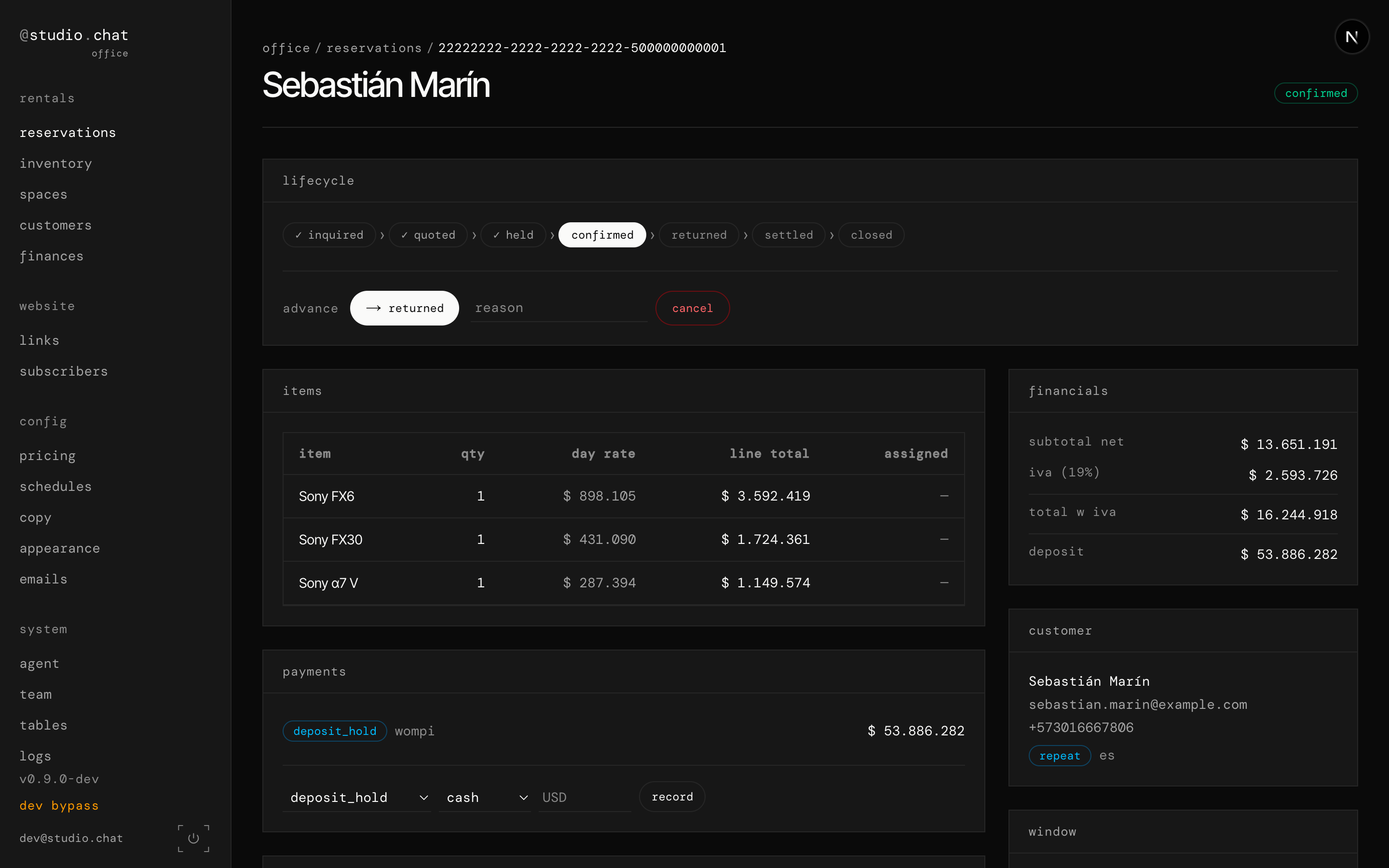
Below the lifecycle, one screen holds the whole picture. You rarely touch most of it — it's there so you can answer any question without leaving the page.
- items — the gear and studio spaces on this booking, with quantity, the day rate, and the line total. The assigned column shows which physical unit is tied to each line once it goes out.
- financials — subtotal, IVA (tax), the total, and the deposit. These are calculated for you from the rates and the rental window.
- payments — what's been collected. To record one, pick the type (e.g. a deposit hold), the method (cash, card…), the currency, and click record.
- client — who it's for, with their email, phone, and standing.
- claims and window — damage claims (if any) and the exact pickup/return times.
4. Creating a reservation
Click create reservation from the list.
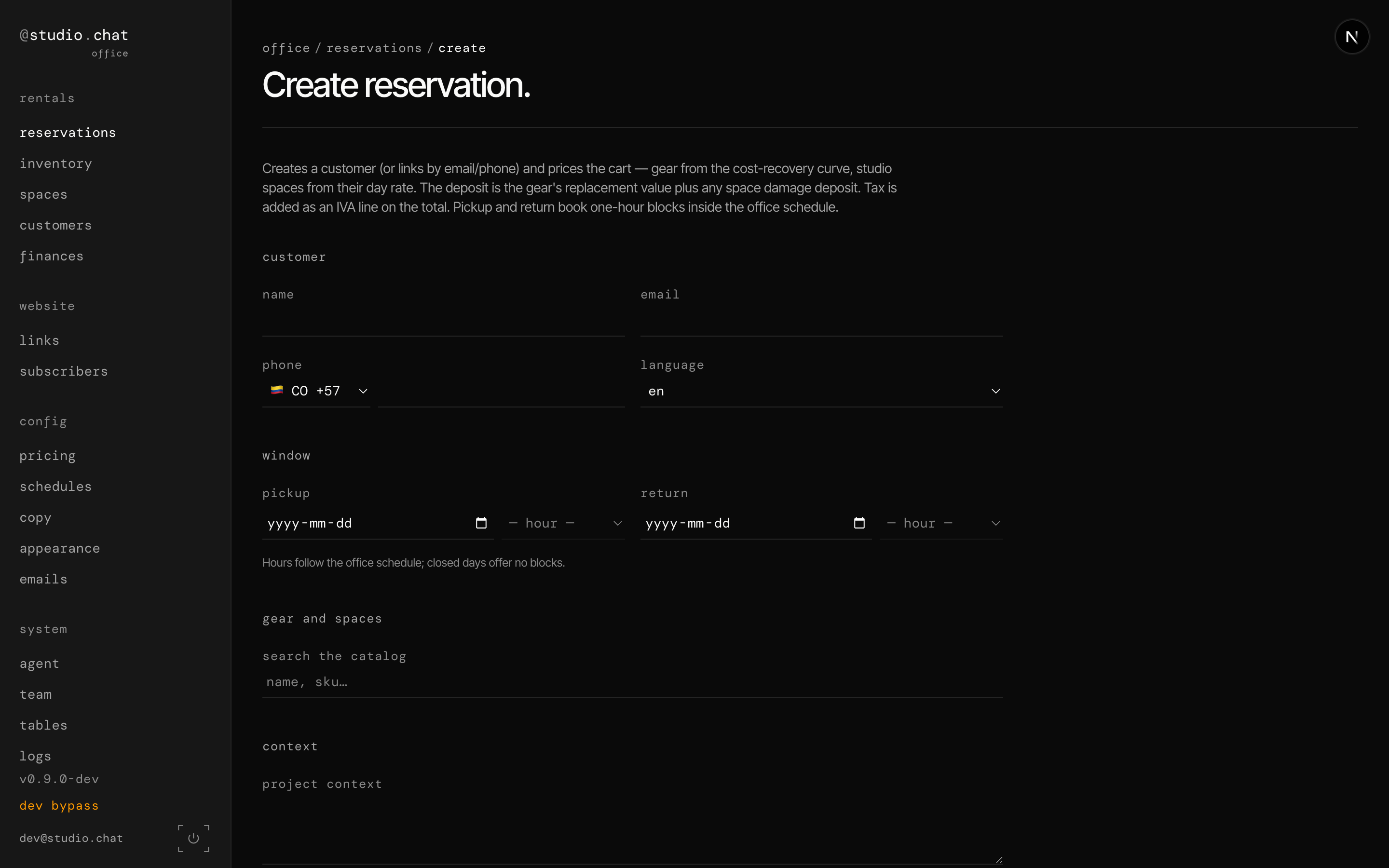
Fill it top to bottom:
- client — name and email (phone and language are optional). As you
type an email or phone, the system checks for an existing client — a
green ✓ means the reservation attaches to their account instead of
creating a duplicate. The flag next to phone is the country code; it
follows your location and updates itself if a pasted number starts
with
+. - window — pick the pickup and return dates, then a one-hour block. Only hours the studio is open (or open by reservation) are offered; closed days offer none.
- gear and spaces — type in search the catalog and click a result to add it. Use the − / + steppers to set quantities (you can't add more than the studio owns); stepping to zero removes the line. Pricing fills in automatically.
- context — anything worth noting about the shoot.
- status — where to start it (usually inquired or quoted).
Save, and you land on the new reservation, ready to advance.
The whole flow, in one breath
A client asks (inquired) → you send a price (quoted) → they commit, so you lock the dates (confirmed) → they collect the gear, use it, and bring it all back (returned) → you square the money (settled) → done (closed).
Everything else — held, cancelled, disputed — is for the times real life doesn't go in a straight line.
Flagged for review
Per the brief, things that may be more complicated than they need to be — worth a product decision, not a staff problem:
Nine forward stages is a lot of clicks.RESOLVED. The lifecycle was collapsed to seven stages: out and inspection are gone, and gear being out is now scan state inside a confirmed reservation (the first pickup scan stamps the pickup time; the last return scan flips it to returned), with inspection happening during returned. The everyday path is shorter, exactly as this flag asked.- The pickup and return scan. This guide explains advancing the status in the web office. The physical hand-off — binding a specific serial to a line, scanning units — runs through the staff app's pickup / return endpoints, not this page, and scanning is now what marks gear out and back in (the reservation stays confirmed while gear is out; the last return scan moves it to returned). Add a one-line pointer here once the staff app ships so nobody hunts for the scan flow in the web office.
- Payment types. The payment form offers a type (e.g. deposit hold), method, and currency. Make sure the type names are self-explanatory at the point of use; if not, a short tooltip per option would save questions.
- Off-spine recovery. Disputed can return to settled — make sure the advance controls expose that path clearly when a reservation is disputed (this guide describes it, but staff should be able to do it without reading docs).
Screenshots taken from the local office with sample data. The amber
dev_bypass marker in the sidebar is a development-only artifact and won't
appear in the real office.